Monitoring Che Server
You can configure Che to expose JVM metrics such as JVM memory and class loading for Che Server.
Enabling and exposing Che Server metrics
Che exposes the JVM metrics on port 8087 of the che-host Service.
When metrics are enabled, the Che Operator automatically creates and manages the Prometheus ServiceMonitor and RBAC resources required for metrics collection.
-
Configure the
CheClusterCustom Resource. See Using the CLI to configure the CheCluster Custom Resource.spec: components: metrics: enable: <boolean> (1)1 trueto enable metrics and automatic Prometheus integration (default),falseto disable.
Collecting Che Server metrics with Prometheus
The Che Operator automatically manages the Prometheus resources required to collect Che Server metrics when metrics are enabled.
-
Your organization’s instance of Che is installed and running in Red Hat OpenShift.
-
An active
ocsession with administrative permissions to the destination OpenShift cluster. See Getting started with the CLI. -
Che is exposing metrics on port
8087. See Enabling and exposing Che server JVM metrics.
The Che Operator automatically creates and manages the following resources:
-
A
ServiceMonitorfor detecting the Che Server metrics Service (che-host) -
A
RoleandRoleBindingto allow theprometheus-k8sServiceAccount to scrape metrics -
The
openshift.io/cluster-monitoring: "true"label on the Che namespace to enable OpenShift monitoring
No manual configuration is required. To enable metrics collection, ensure that metrics are enabled in the CheCluster Custom Resource. See Enabling and exposing Che server JVM metrics.
-
In the Administrator view of the OpenShift web console, go to Observe → Metrics.
-
Run a PromQL query to confirm that the metrics are available. For example, enter
process_uptime_seconds{job="che-host"}and click Run queries.
|
To troubleshoot missing metrics, view the Prometheus container logs for possible RBAC-related errors:
|
Viewing Che Server from an OpenShift web console dashboard
After configuring the in-cluster Prometheus instance to collect Che Server JVM metrics, you can view the metrics on a custom dashboard in the Administrator perspective of the OpenShift web console.
-
Your organization’s instance of Che is installed and running in Red Hat OpenShift.
-
An active
ocsession with administrative permissions to the destination OpenShift cluster. See Getting started with the CLI. -
The in-cluster Prometheus instance is collecting metrics. See Collecting Che Server metrics with Prometheus.
-
Create a ConfigMap for the dashboard definition in the
openshift-config-managednamespace and apply the necessary label.-
$ oc create configmap grafana-dashboard-devspaces-server \ --from-literal=devspaces-server-dashboard.json="$(curl https://raw.githubusercontent.com/eclipse-che/che-server/main/docs/grafana/openshift-console-dashboard.json)" \ -n openshift-config-managed -
$ oc label configmap grafana-dashboard-devspaces-server console.openshift.io/dashboard=true -n openshift-config-managedThe dashboard definition is based on Grafana 6.x dashboards. Not all Grafana 6.x dashboard features are supported in the OpenShift web console.
-
-
In the Administrator view of the OpenShift web console, go to Observe → Dashboards.
-
Go to Dashboard → Che Server JVM and verify that the dashboard panels contain data.
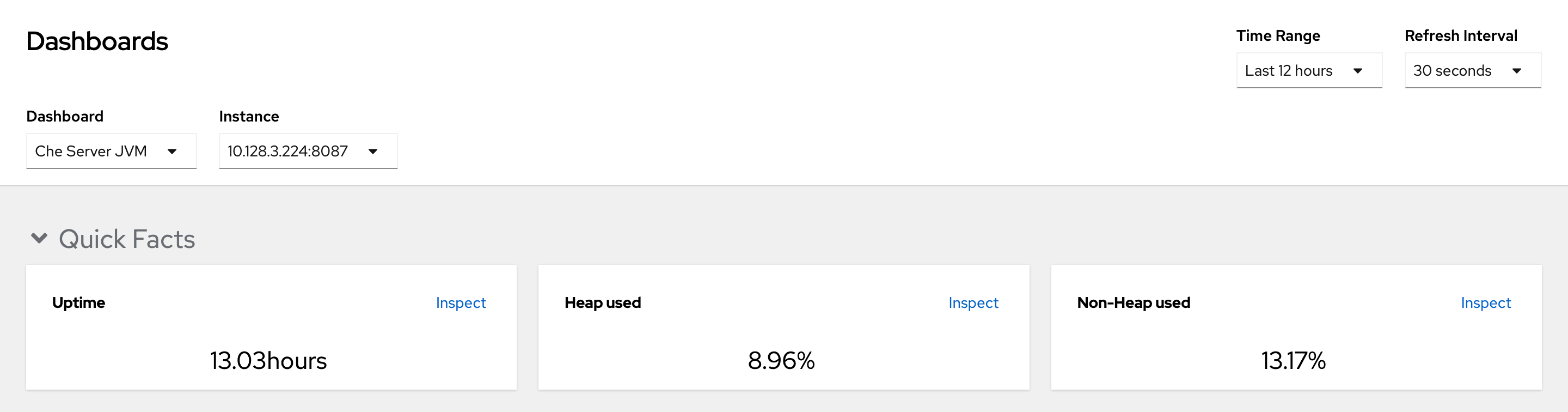 Figure 1. Quick Facts
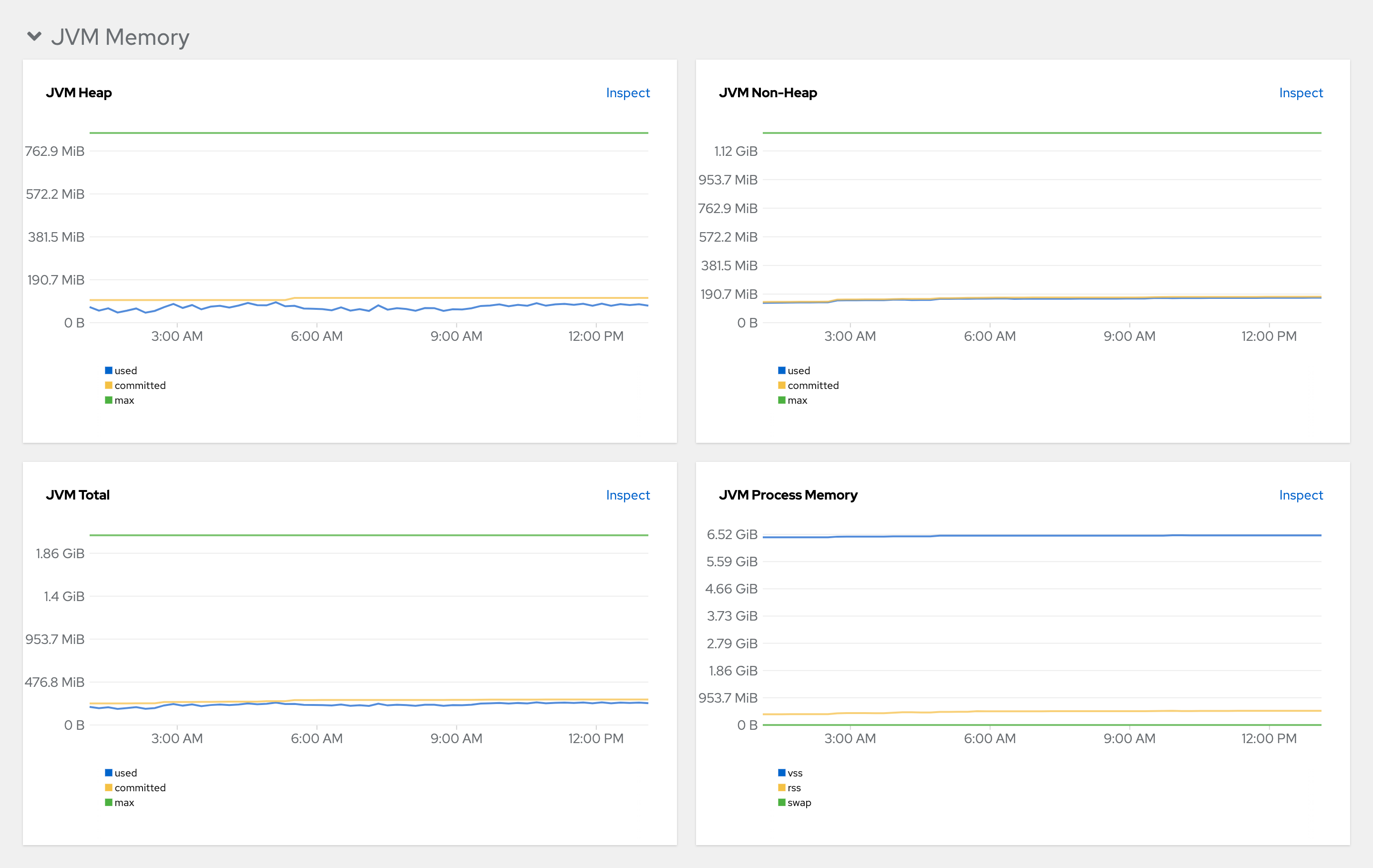 Figure 2. JVM Memory
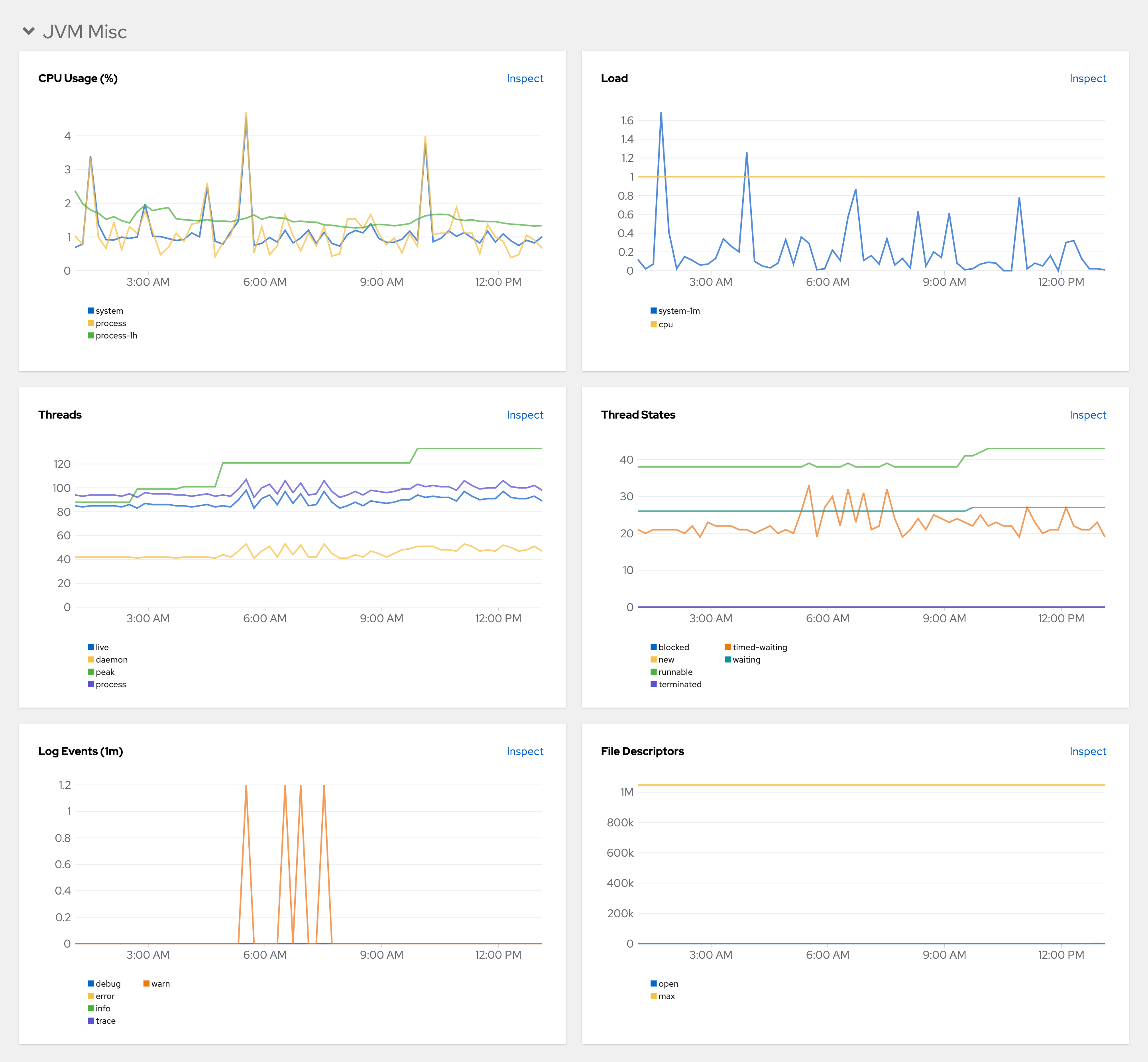 Figure 3. JVM Misc
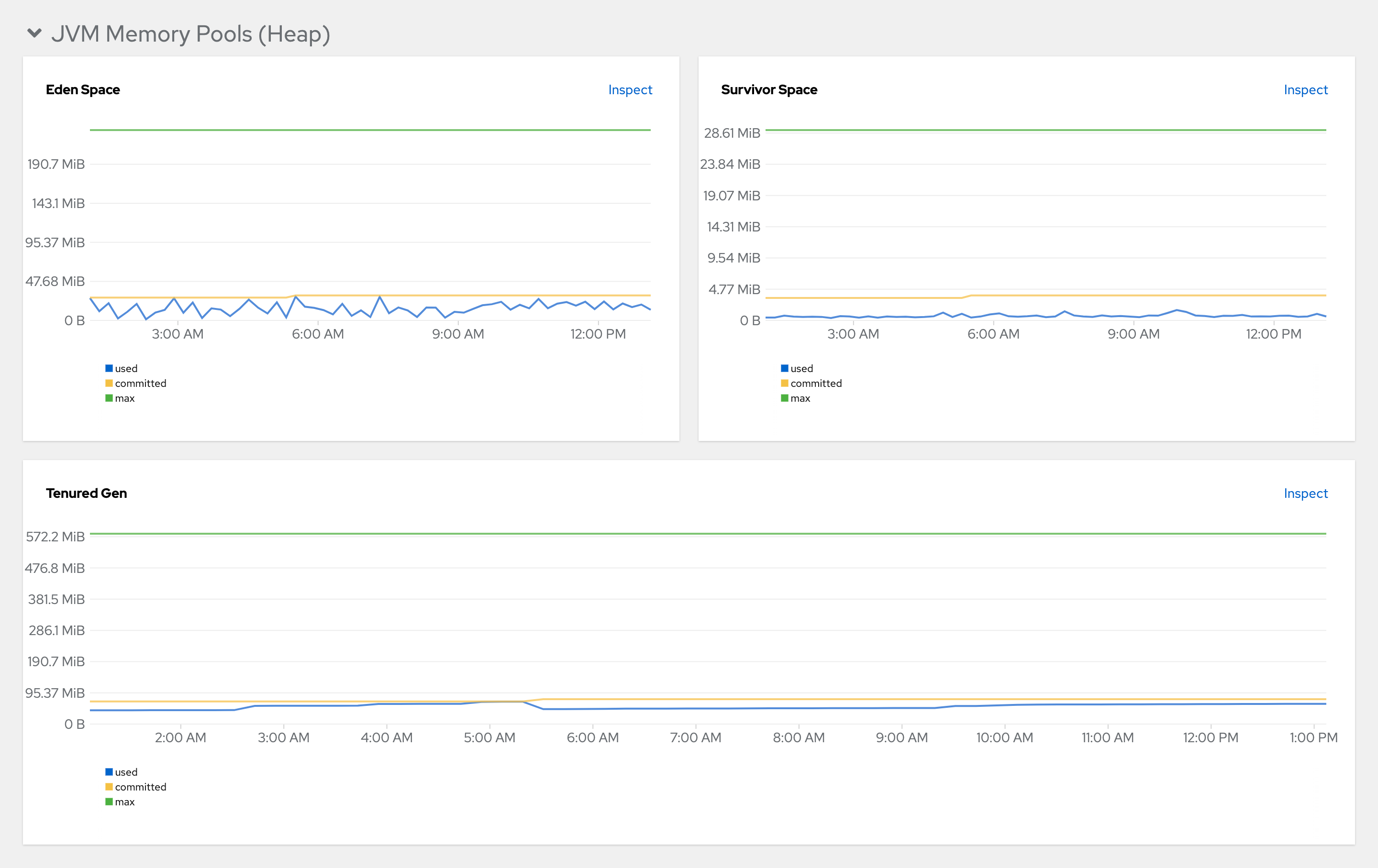 Figure 4. JVM Memory Pools (heap)
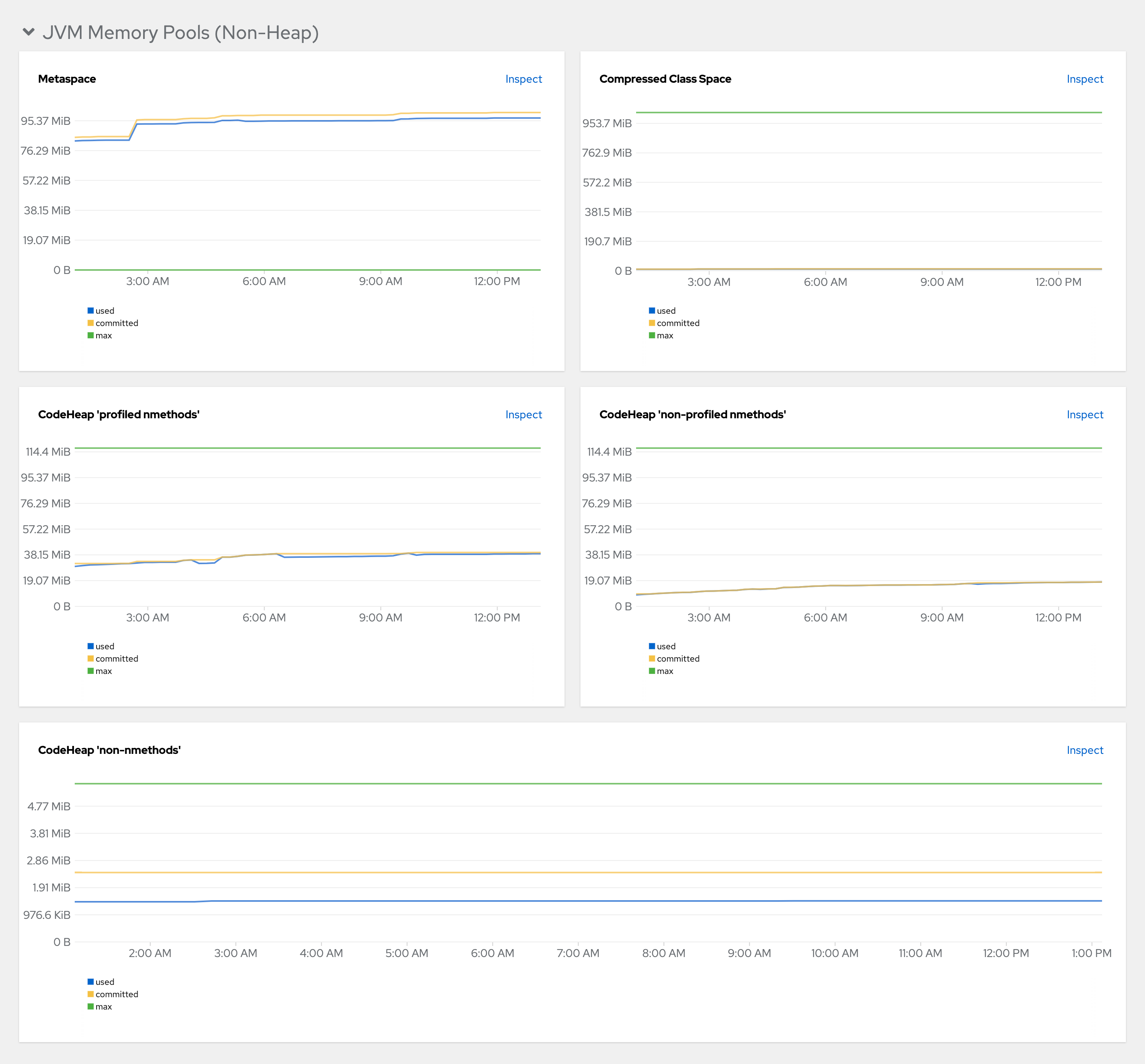 Figure 5. JVM Memory Pools (Non-Heap)
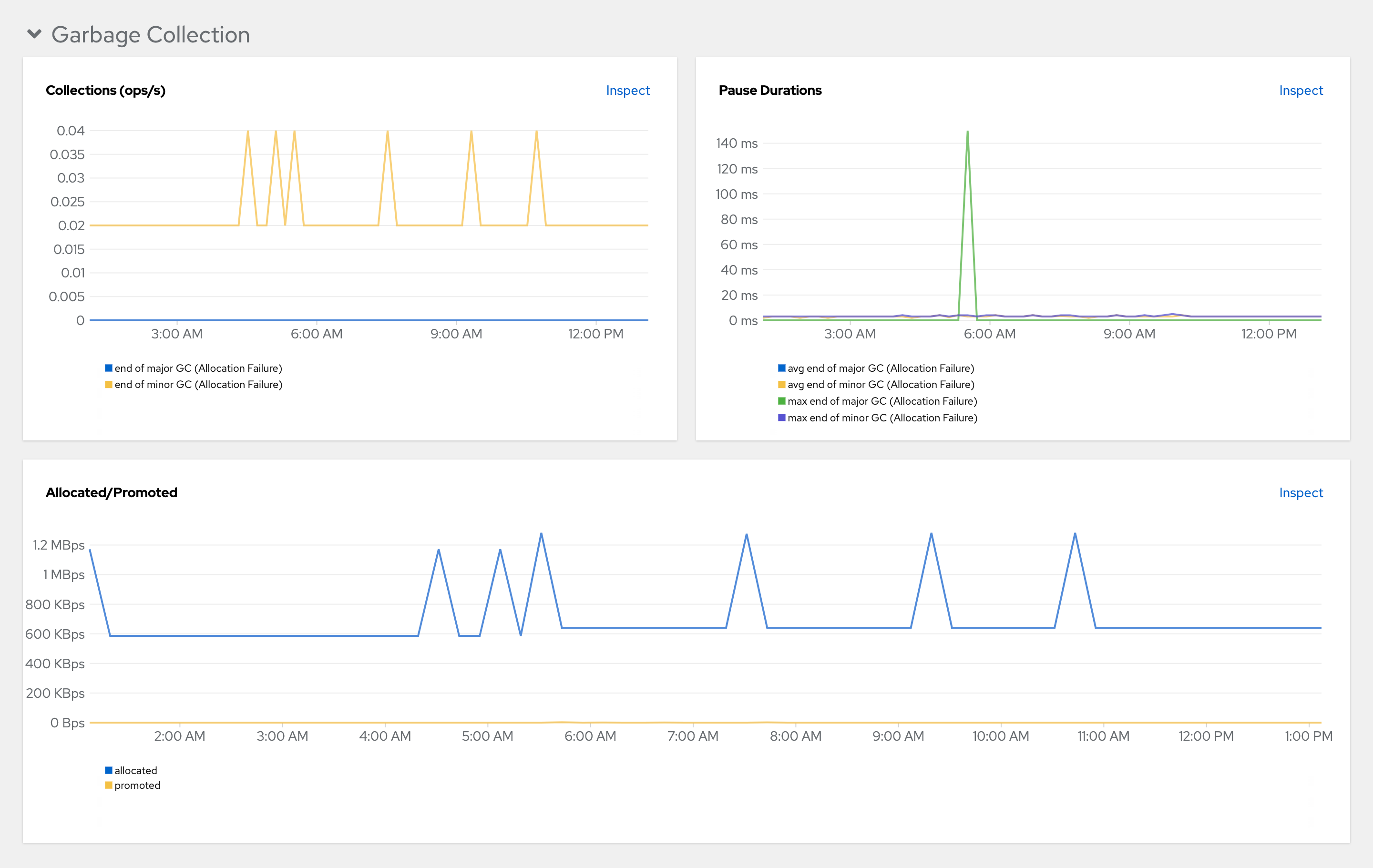 Figure 6. Garbage Collection
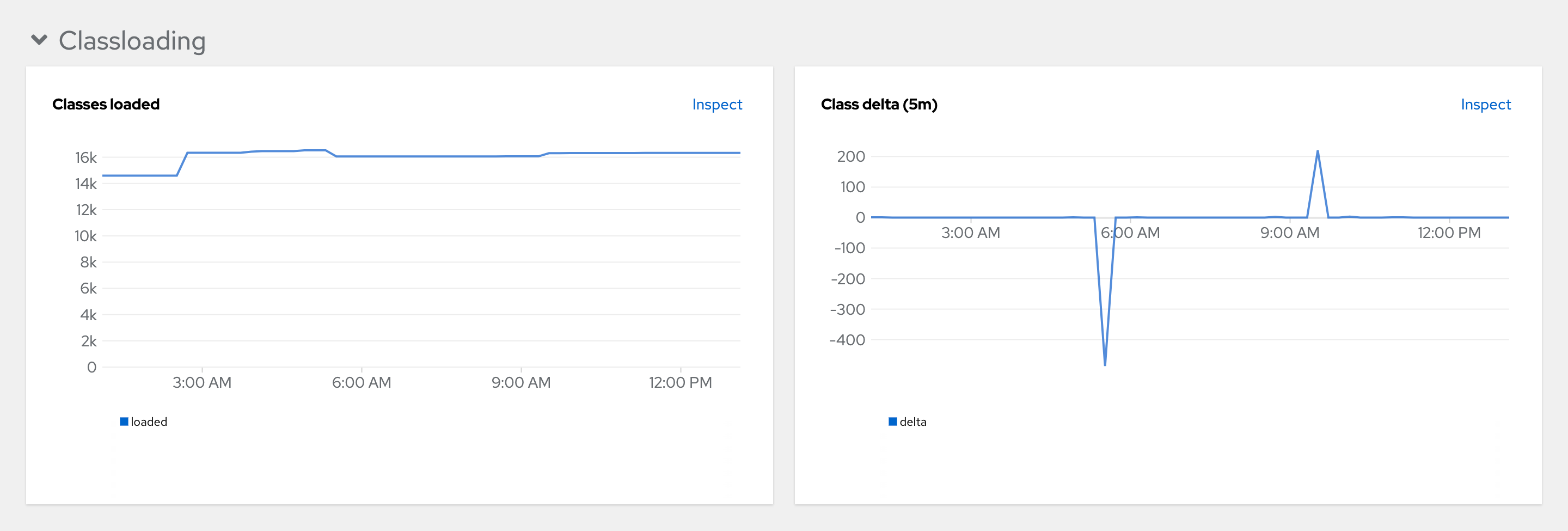 Figure 7. Class loading
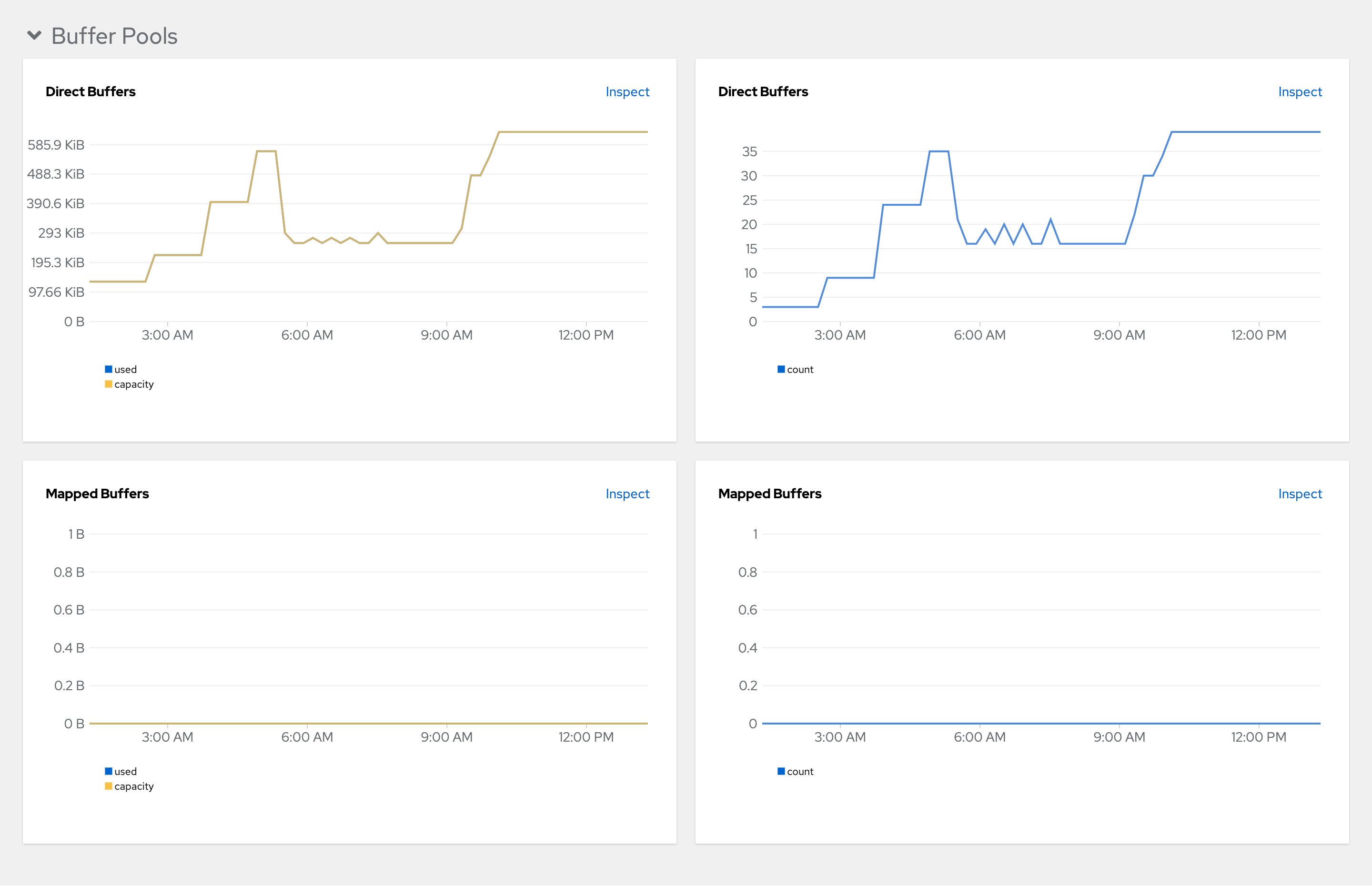 Figure 8. Buffer Pools